Connect Akinda to Claude: Shariah screening inside your AI (MCP server)
Add Akinda to Claude once and ask “Is Apple halal?” straight from the chat. Here's what the MCP server is, the tools it adds, and how to connect in about a minute.

Akinda now runs as an MCP (Model Context Protocol) server — which means you can connect it straight to Claude and ask about Shariah compliance in plain language. No dashboards, no copy-pasting tickers: just ask “Is Apple halal?” or “Screen these 30 tickers” and Claude pulls the answer from Akinda, on your own subscription, tier and limits.
What it is
One connector. You add Akinda's MCP server to Claude once, sign in with the Google account on your Akinda subscription, and Claude gains a set of Shariah-screening tools it can call for you. Every answer is backed by the same audited data as the Akinda dashboard and REST API — and every tool call runs on your plan, so your rate, bandwidth and monthly limits apply exactly as they do everywhere else.
The five tools it adds
Once connected, Claude can call:
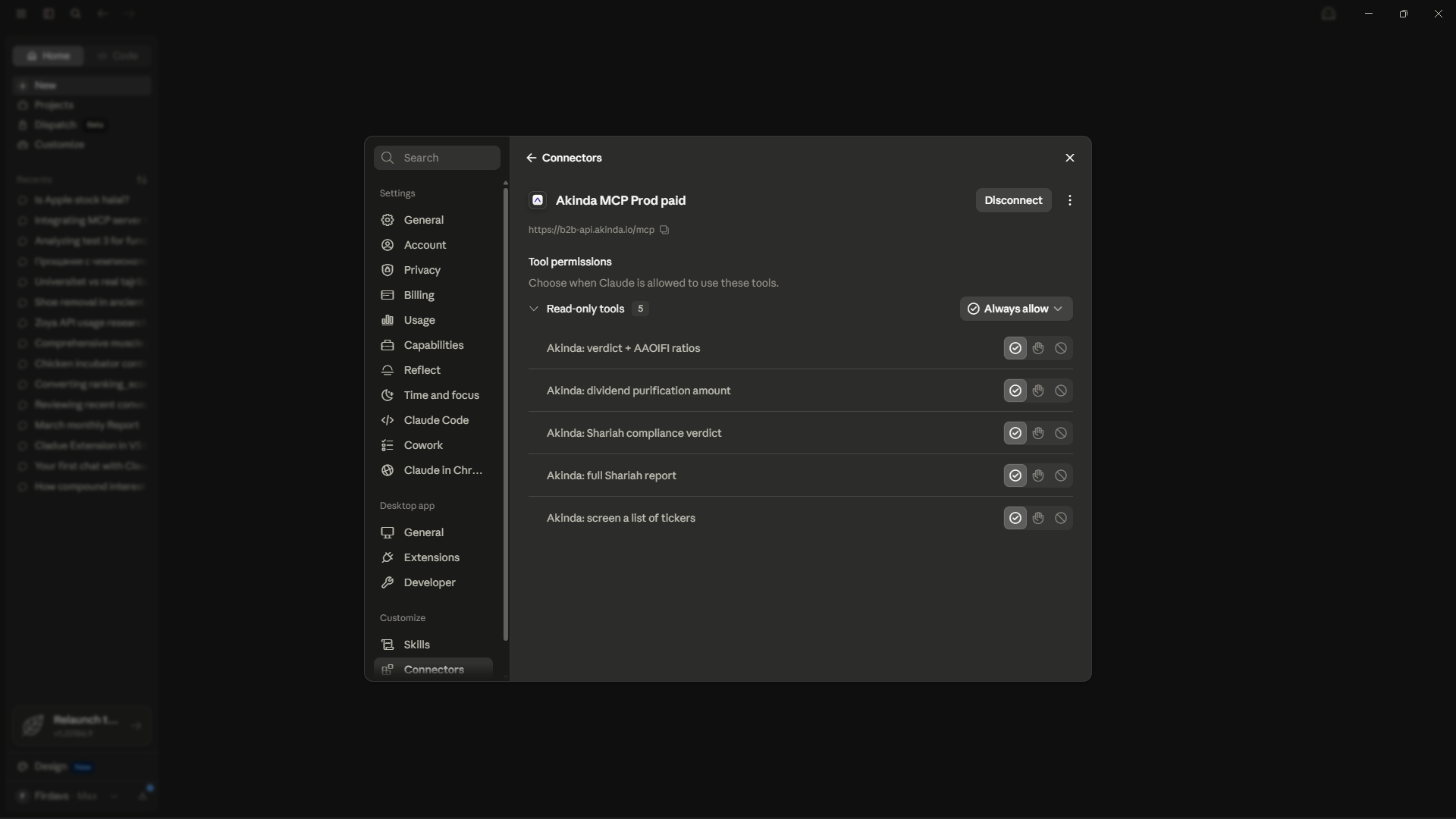
akinda_check_compliance— a Shariah verdict for one ticker.akinda_basic_report— the verdict plus the three core AAOIFI ratios.akinda_full_report— the full report, with AI-extracted figures (and, on Business Ultimate and Enterprise, the Akinda ranking).akinda_screen_portfolio— a verdict for a whole list of tickers at once.akinda_calculate_purification— how much of a dividend to purify.
Each call is one metered API request, gated by the same plan tiers as the REST API — Personal Standard gets verdicts and basic reports; Personal Ultimate unlocks the full report. Verdicts come back as Halal, Not Halal, Doubtful, or a “no data” state.
Who it's for
Any paid Akinda subscriber who lives in an AI assistant. If you research stocks, build watchlists, or reconcile a portfolio, you can now do the Shariah check without leaving the chat — and chain it with everything else Claude does: “screen my portfolio, then explain why the two non-compliant names failed.” A free plan can connect, but tool calls return an upgrade message until you're on a paid plan.
How to connect (Claude)
The recommended way is Sign in with Google — no API key to copy. It takes about a minute in the Claude desktop app (claude.ai on the web is the same). Follow the steps below:
- 1
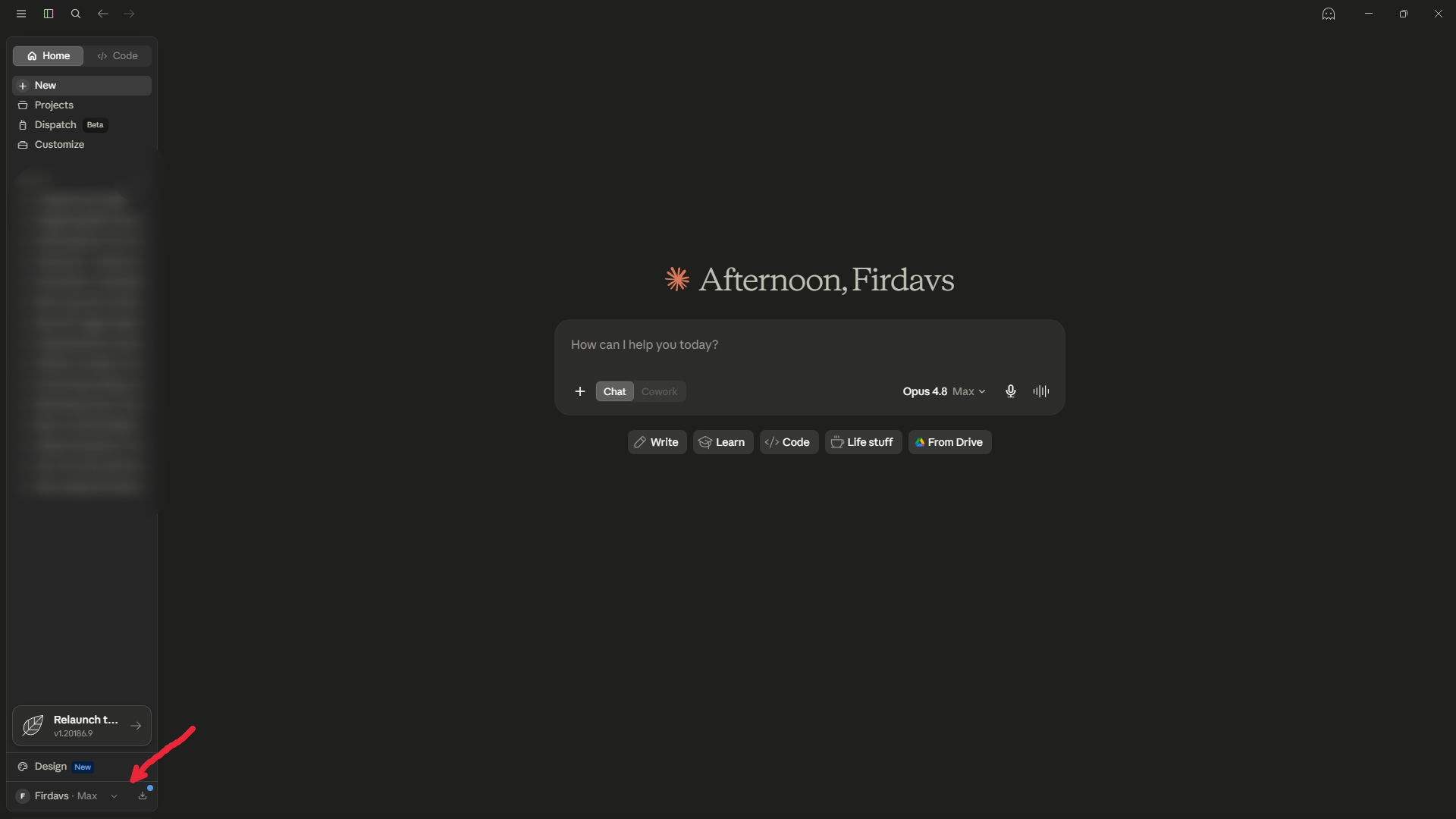
Open your profile in Claude
In the Claude desktop app, click your profile at the bottom-left of the sidebar.
Show the full step-by-step — 9 more steps, with screenshots▾
- 2
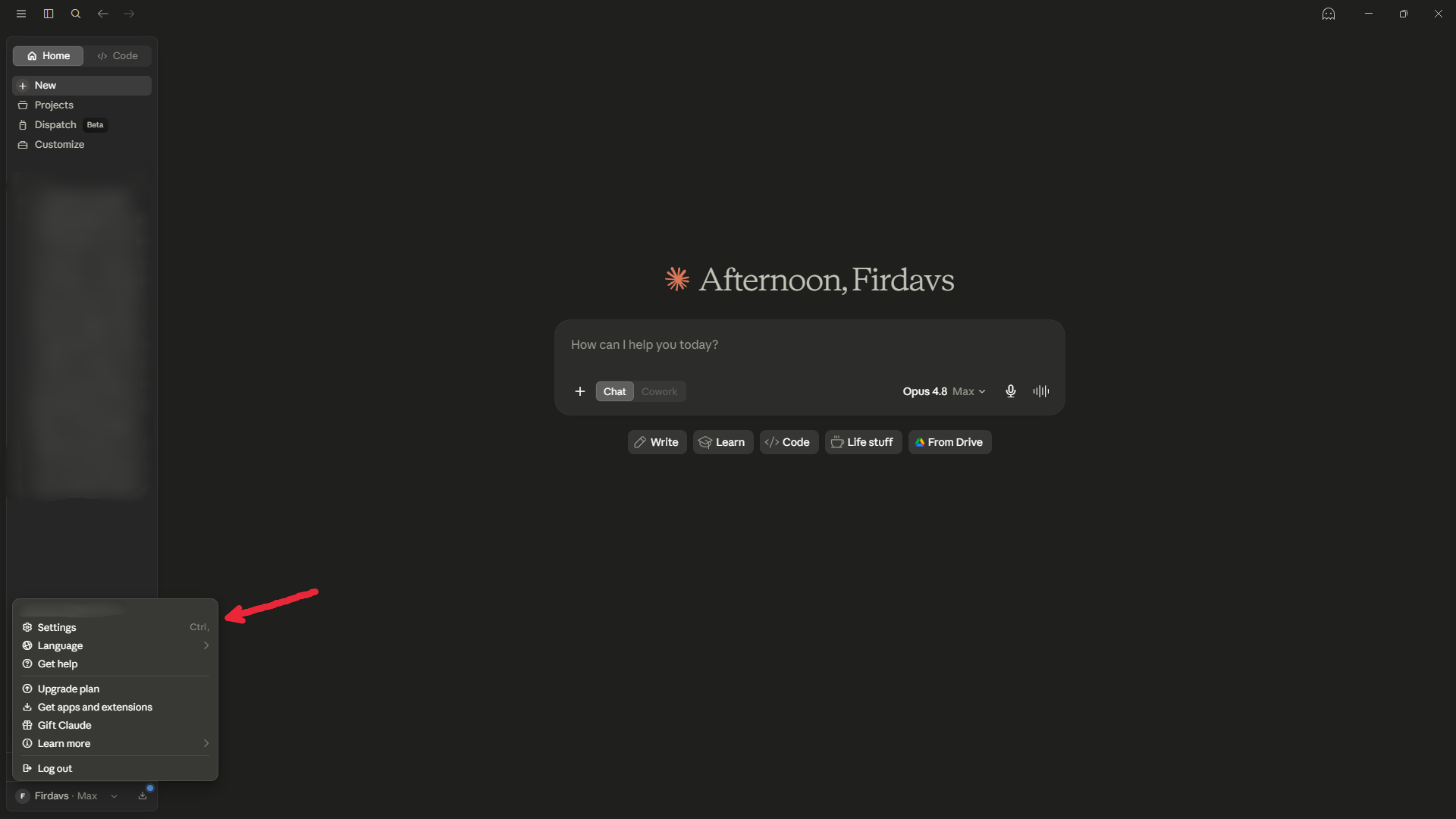
Open Settings
Click Settings — or just press Ctrl + ,.
- 3
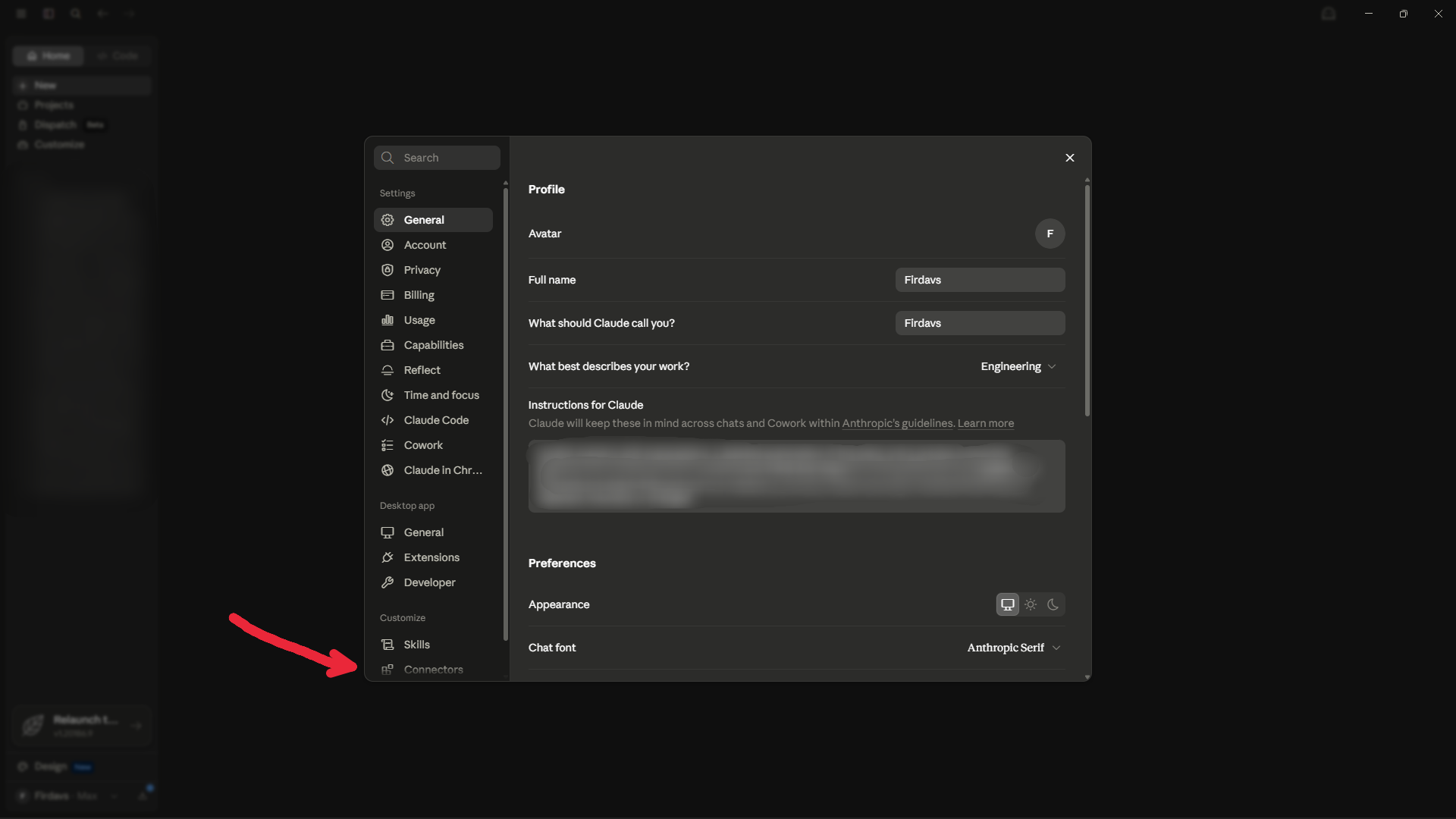
Go to Connectors
In the Settings window, scroll the left menu down to Connectors and open it.
- 4
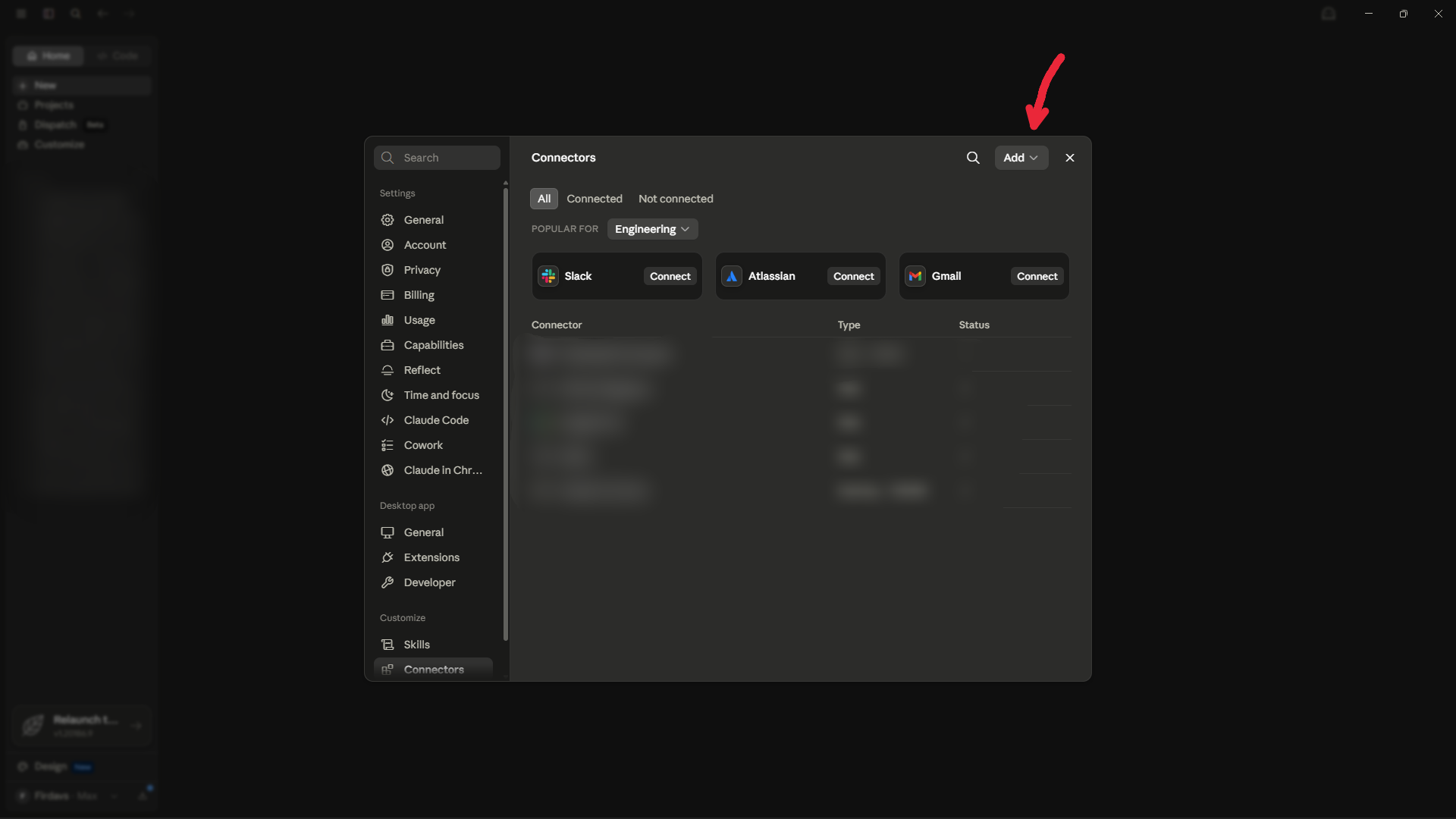
Click Add
At the top-right of the Connectors panel, click the Add dropdown.
- 5
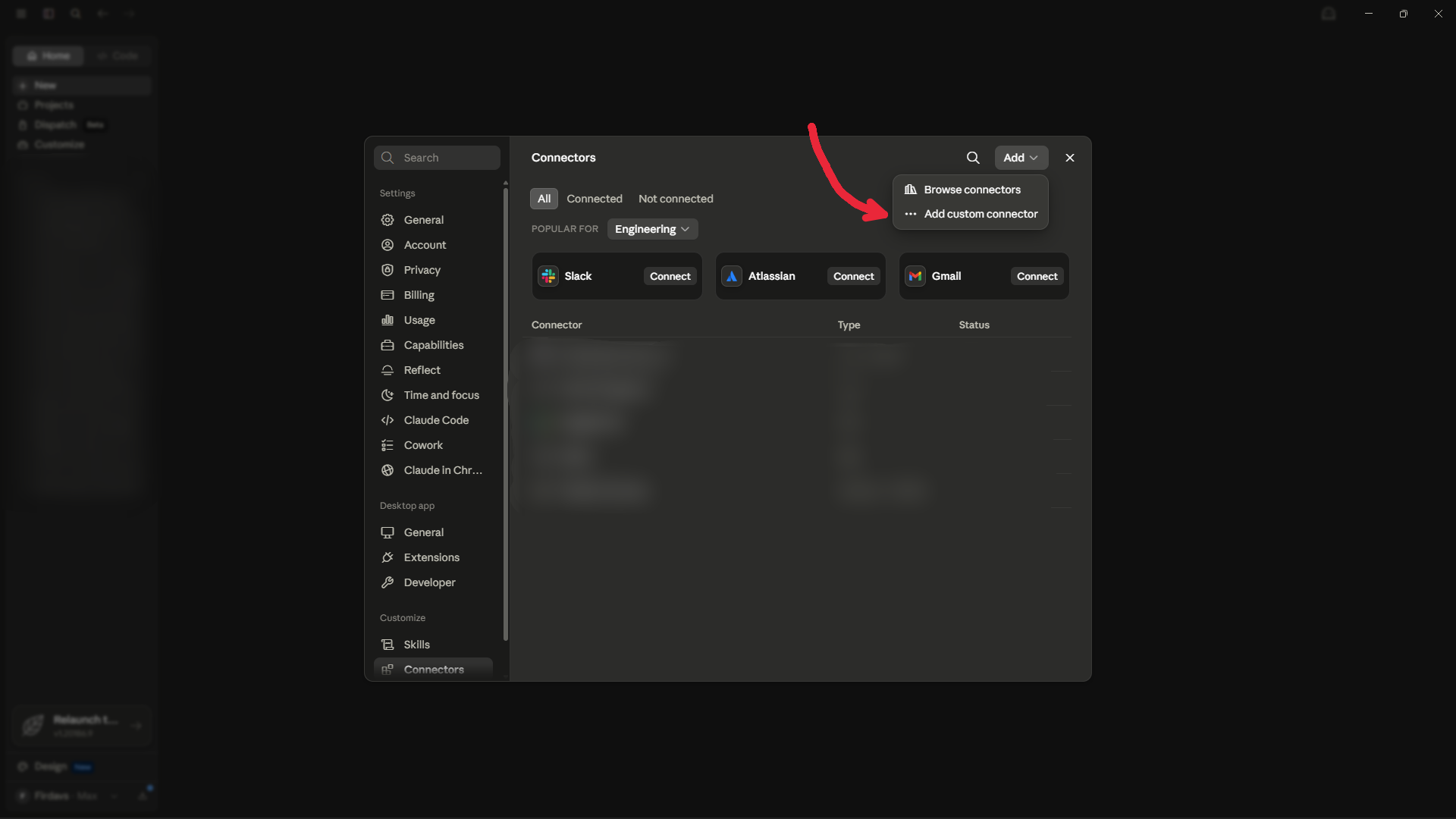
Choose Add custom connector
In the dropdown, click Add custom connector.
- 6
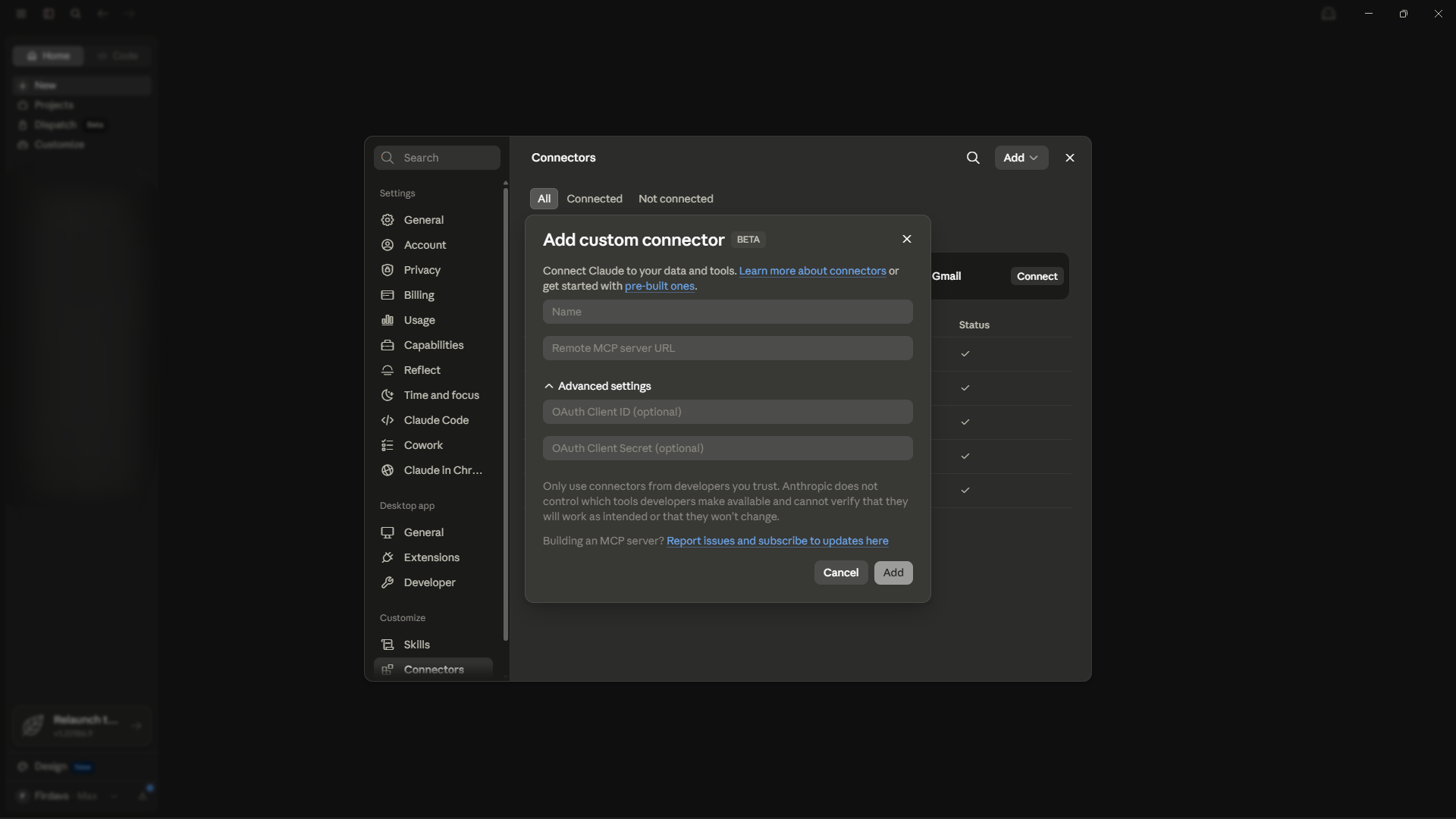
The dialog opens
You'll see two fields — a Name and a Remote MCP server URL. Leave Advanced settings empty — Claude registers itself automatically.
- 7
Enter the name and the URL
Give it a name — e.g. Akinda MCP — and paste this into Remote MCP server URL:
https://b2b-api.akinda.io/mcp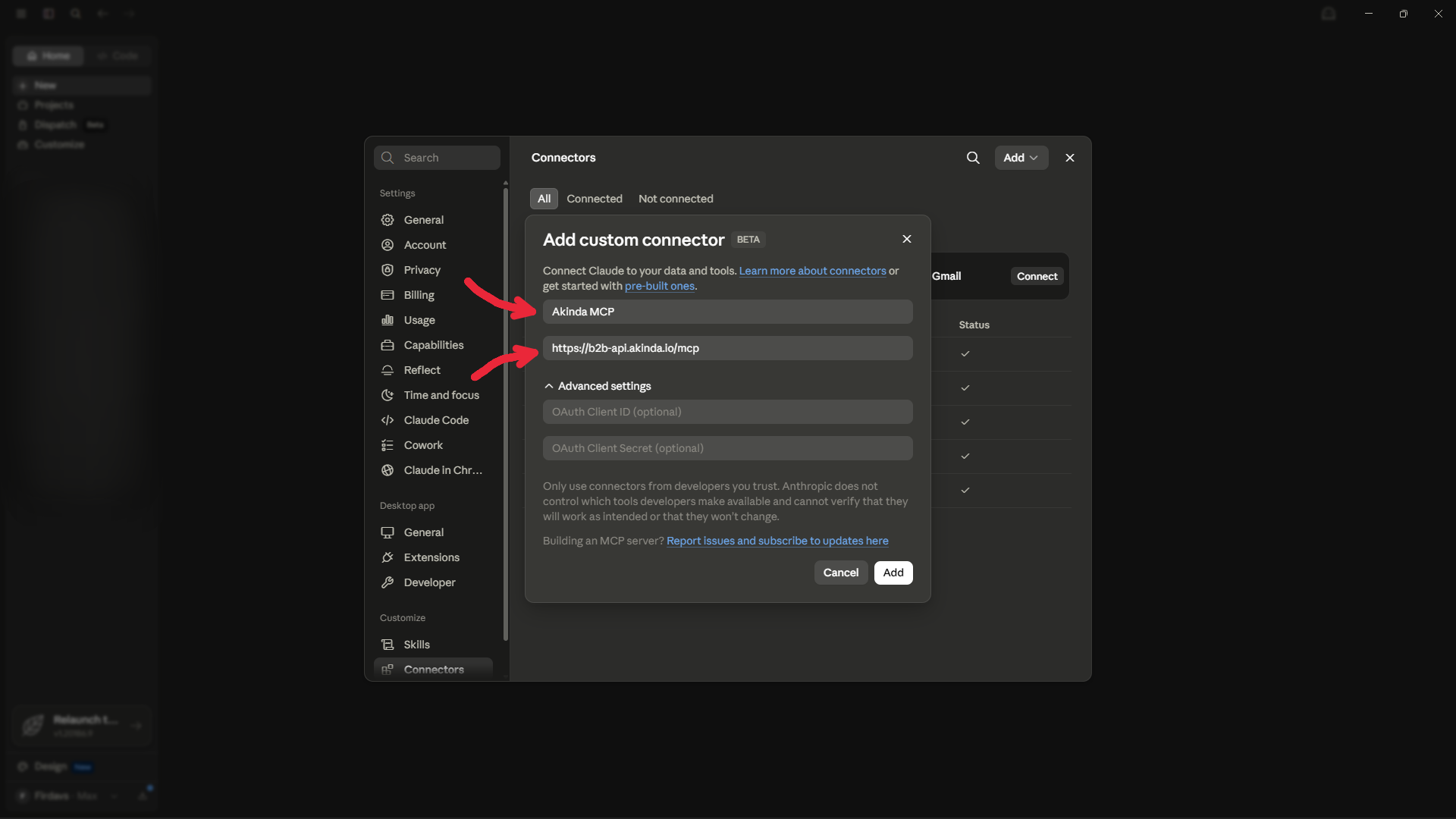
- 8
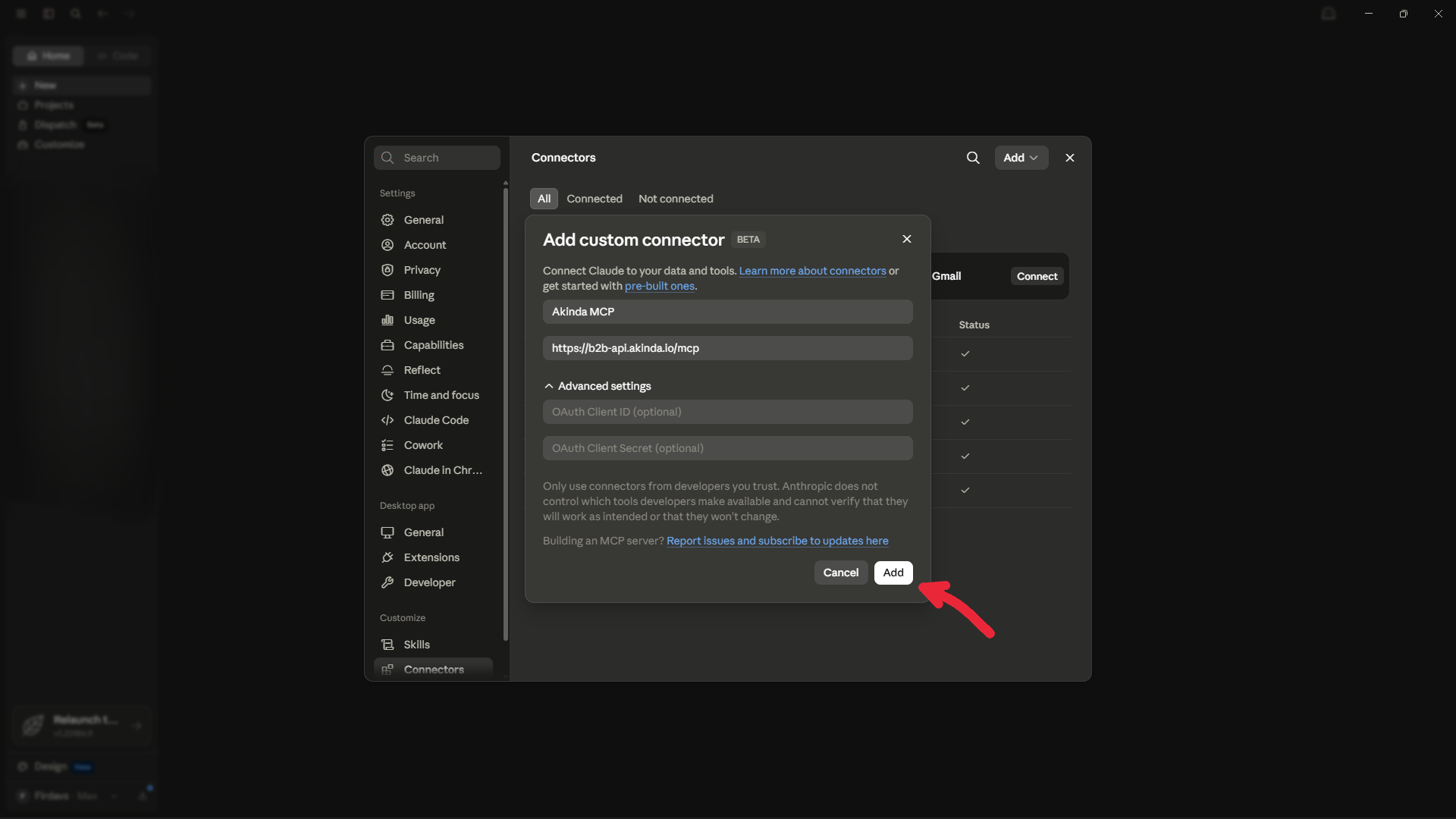
Click Add
Click Add to save the connector.
- 9
Connect and sign in with Google
Find Akinda MCP in your connectors and click Connect. A browser tab opens — choose the Google account on your Akinda subscription (the paid account you already use), approve, and it returns to Claude. Akinda never sees your Google password.
- 10
Done — the tools are ready
Claude now shows Akinda connected with its five read-only tools. Ask something like “Is AAPL halal?” and Claude will use them.
Full walkthrough
In short
The MCP server turns Akinda into something your AI can simply use. Connect it once, and Shariah screening becomes a question you ask — not a workflow you run. Full documentation, both connect methods, and the exact tool tiers live in the MCP Server section of the developer docs.
A note on scope
Related reading